


Tanıtım;
Son derece güçlü ve etkili bir malware temizleyicisi olan ComboFix malware ve bazı virüs ve trojan temizleme konusunda oldukça ciddi işler başaran etkili bir yazılımdır. ComboFix amvo.exe, kavo.exe gibi bilgisayarlarda sıkça rastlayabileceğimiz zararlara karşı sisteminizi en iyi şekilde korur ve bu zararlardan sisteminizi uzak tutar.
Not: ComboFix programını çok dikkatli kullanmalısınız, sadece amacınız sisteminize bulaşan zararı temizlemek olmalıdır, eğer bilmediğiniz ayarlara girerseniz işletim sisteminzde değişikliklere yol açabilirsiniz ve sisteminizin doğru çalışmasına engel olabilirsiniz.
İndirme linkine tıkladığınızda gideceğiniz adres sUBs tarafından yani ComboFix`in resmi üreticisi tarafından verilen bağlantıdır. Bu bağlantıda program tanıtılmakta ve programın download linki bulunmaktadır.
Yüklenme :
To download ComboFix, simply left-click on one of the links above and you will see a prompt similar to the figure below.
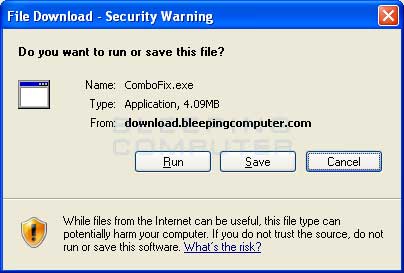
Download ComboFix Prompt
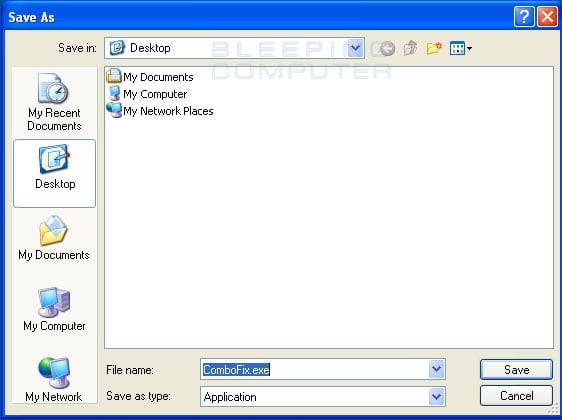
Downloading ComboFix to the Desktop

ComboFix Icon
Once you double-click on the icon, you may see a screen similar to the one below.
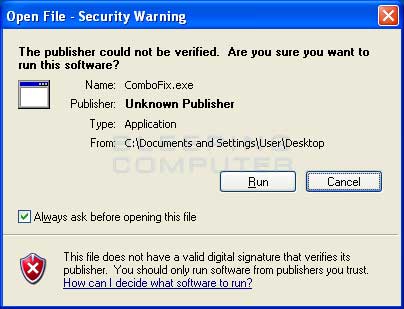
Windows Open File Security Warning
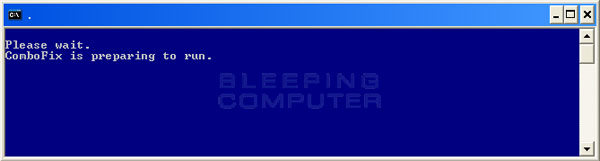
ComboFix is Preparing to Run

ComboFix Disclaimer
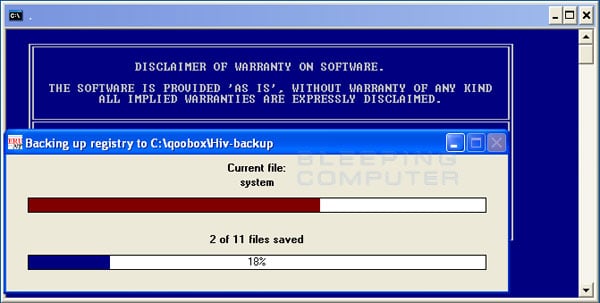
ComboFix is backing up the Windows Registry
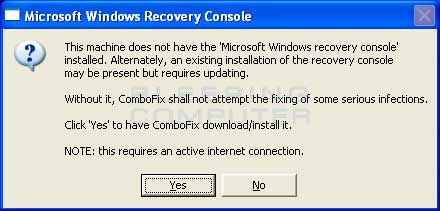
ComboFix Recovery Console
At the above message box, please click on the Yes button in order for ComboFix to continue. Please follow the steps and instructions given by ComboFix in order to finish the installation of the Recovery Console. Once it has finished installing, you will be presented with the screen shown below.
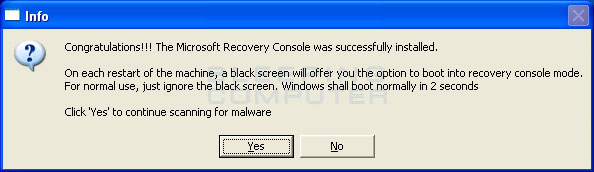
ComboFix Recovery Console Finished
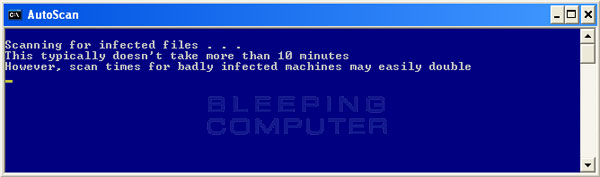
ComboFix is scanning the computer for infections
While the program is scanning your computer, it will change your clock format, so do not be concerned when you see this happen. When ComboFix is finished it will restore your clock settings to their previous settings. You will also see the text in the ComboFix window being updated as it goes through the various stages of its scan. An example of this can be seen below.
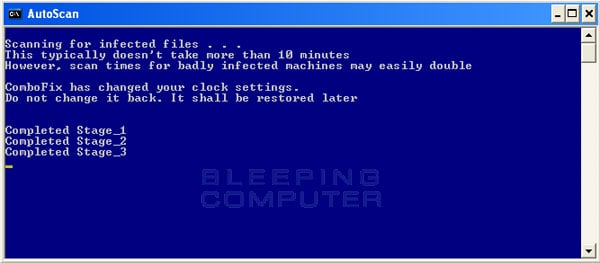
Stages of the ComboFix AutoScan
At the time of this writing there are a total of 50 stages as shown in the image below, so please be patient. The amount of stages will go up as time goes on, so if the amount of stages is different when you run it, please do not be concerned.
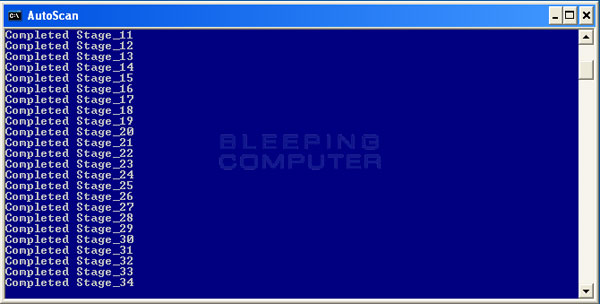
34th Stage of the ComboFix AutoScan
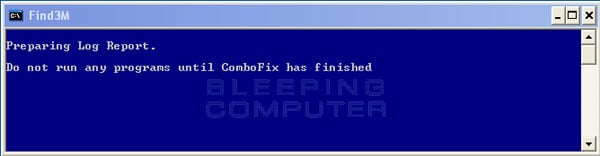
ComboFix is preparing the log report
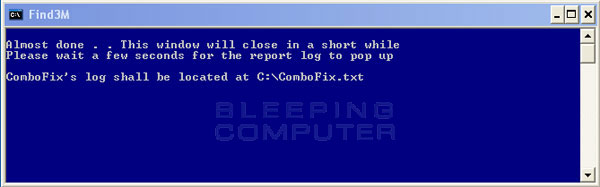
ComboFix is almost done!
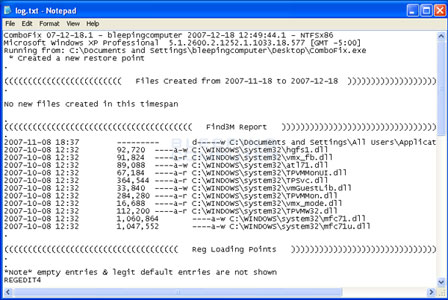
ComboFix Log File
Below is a list of forums where there are authorized helpers who understand and can analyze ComboFix logs. We have categorized the forums by language as ComboFix is used internationally.
Manually installing the Windows Recovery Console
In the event that the automatic install of Recovery Console was not possible, you should follow the steps listed here in order to manually install it. The Windows recovery console is a tool that will allow you to boot up into a special recovery mode that allows us to help you in the case that your computer has a problem after an attempted removal of malware. If you use Windows XP and have a Windows CD, then you can follow the instructions found in the tutorial listed below.
Windows Vista users can use their Windows DVD to boot up into the
If you use Windows XP and do not have the Windows CD, ComboFix includes a method of installing the Windows Recovery console by downloading a file from Microsoft. To install the Windows Recovery Console when you do not have the Windows XP CD, please follow these instructions:
Manually restoring the Internet connection
If, by some chance, you no longer have access to your Internet connection after running ComboFix then the first thing to try is to reboot your computer. This step alone should fix the vast majority of issues with no Internet connection after running ComboFix. If you still do not have an Internet connection after rebooting then please perform the following steps:
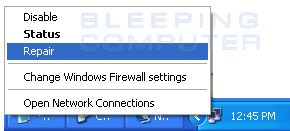
Repair Internet connection via Tray Icon
If you still do not have an Internet connection after performing these two tasks, then you may want to ask for help in our
Son derece güçlü ve etkili bir malware temizleyicisi olan ComboFix malware ve bazı virüs ve trojan temizleme konusunda oldukça ciddi işler başaran etkili bir yazılımdır. ComboFix amvo.exe, kavo.exe gibi bilgisayarlarda sıkça rastlayabileceğimiz zararlara karşı sisteminizi en iyi şekilde korur ve bu zararlardan sisteminizi uzak tutar.
Not: ComboFix programını çok dikkatli kullanmalısınız, sadece amacınız sisteminize bulaşan zararı temizlemek olmalıdır, eğer bilmediğiniz ayarlara girerseniz işletim sisteminzde değişikliklere yol açabilirsiniz ve sisteminizin doğru çalışmasına engel olabilirsiniz.
İndirme linkine tıkladığınızda gideceğiniz adres sUBs tarafından yani ComboFix`in resmi üreticisi tarafından verilen bağlantıdır. Bu bağlantıda program tanıtılmakta ve programın download linki bulunmaktadır.
Yüklenme :
To download ComboFix, simply left-click on one of the links above and you will see a prompt similar to the figure below.
Download ComboFix Prompt
Click on the Save button, and when it asks you where to save it, make sure you save it directly to your Windows Desktop. An image showing this is below.
Downloading ComboFix to the Desktop
When you have the Save as screen configured to save ComboFix.exe to the Desktop, click on the Savebutton. ComboFix will now start downloading to your computer. If you are on a dialup, this may take a few minutes. When ComboFix has finished downloading you will now see an icon on your desktop similar to the one below.
ComboFix Icon
We are almost ready to start ComboFix, but before we do so, we need to take some preventative measures so that there are no conflicts with other programs when running ComboFix. At this point you should do the following:
- Close all open Windows including this one.
- Close or disable all running Antivirus, Antispyware, and Firewall programs as they may interfere with the proper running of ComboFix. Instructions on disabling these type of programs can be found in
Linkleri görebilmek için Turkmmo Forumuna ÜYE olmanız gerekmektedir..
Once you double-click on the icon, you may see a screen similar to the one below.
Windows Open File Security Warning
Windows is issuing this prompt because ComboFix does not have a digital signature. This is perfectly normal and safe and you can click on the Run button to continue. If you are using Windows Vista, and receive UAC prompt asking if you would like to continue running the program, you should press the Continue button.
You will now see the first ComboFix screen as shown below.
ComboFix is Preparing to Run
ComboFix is now preparing to run and when it has finished you will see a screen showing the authorized locations to download Combofix. On this screen please press the OK button and you will be shown the Disclaimer screen shown below.
ComboFix Disclaimer
If you do not agree to the disclaimer, then click on the No button to exit the program. Otherwise, to continue you should press the Yes button to continue. If you decided to continue, then ComboFix will create a System Restore point so that if any problems occur while using the program you can restore back to your previous configuration. When ComboFix has finished creating the restore point, it will then backup yourWindows Registry as shown in the image below.
as shown in the image below.
ComboFix is backing up the Windows Registry
Once the Windows Registry has finished being backed up, ComboFix will attempt to detect if you have the Windows Recovery Console installed. If you already have it installed, you can skip to this section and continue reading. Otherwise you will see the following message as shown below:
ComboFix Recovery Console
At the above message box, please click on the Yes button in order for ComboFix to continue. Please follow the steps and instructions given by ComboFix in order to finish the installation of the Recovery Console. Once it has finished installing, you will be presented with the screen shown below.
ComboFix Recovery Console Finished
You should now press the Yes button to continue. If at any time during the Recovery Console installation you receive a message stating that it failed to install, please allow ComboFix to continue with the scan of your computer. When it is done, and a log has been created, you can then perform the manual install of the Recovery Console using the steps found in the Manually installing the Windows Recovery Console section.
ComboFix will now disconnect your computer from the Internet, so do not be surprised or concerned if you receive any warnings stating that you are no longer on the Internet. When ComboFix has finished it will automatically restore your Internet connection.
ComboFix will now start scanning your computer for known infections. This procedure can take some time, so please be patient.
ComboFix will now disconnect your computer from the Internet, so do not be surprised or concerned if you receive any warnings stating that you are no longer on the Internet. When ComboFix has finished it will automatically restore your Internet connection
.ComboFix will now start scanning your computer for known infections. This procedure can take some time, so please be patient.
ComboFix is scanning the computer for infections
While the program is scanning your computer, it will change your clock format, so do not be concerned when you see this happen. When ComboFix is finished it will restore your clock settings to their previous settings. You will also see the text in the ComboFix window being updated as it goes through the various stages of its scan. An example of this can be seen below.
Stages of the ComboFix AutoScan
At the time of this writing there are a total of 50 stages as shown in the image below, so please be patient. The amount of stages will go up as time goes on, so if the amount of stages is different when you run it, please do not be concerned.
34th Stage of the ComboFix AutoScan
When ComboFix has finished running, you will see a screen stating that it is preparing the log report as shown below.
ComboFix is preparing the log report
This can take a while, so please be patient. If you see your Windows desktop disappear, do not worry. This is normal and ComboFix will restore your desktop before it is finished. Eventually you will see a new screen that states the program is almost finished and telling you the programs log file, or report, will be located atC:\ComboFix.txt. This can be seen in the image below.
ComboFix is almost done!
When ComboFix has finished, it will automatically close the program and change your clock back to its original format. It will then display the log file automatically for you as shown below.
ComboFix Log File
You should now post this log as a reply to the topic where you were asked to run combofix. Your helper will now analyze this log and let you know what they would like you to do next. If you having problems connecting to the Internet after running Combofix, then please read the Manually restoring the Internet connection section.
It is possible that ComboFix, even on its first run, may have fixed the problems you are having. We strongly suggest that you still post your log into the topic that you are receiving help as you most likely will have infections left over that your helper will need to analyze further.
Forums to receive help analyzing ComboFix logsIt is possible that ComboFix, even on its first run, may have fixed the problems you are having. We strongly suggest that you still post your log into the topic that you are receiving help as you most likely will have infections left over that your helper will need to analyze further.
Below is a list of forums where there are authorized helpers who understand and can analyze ComboFix logs. We have categorized the forums by language as ComboFix is used internationally.
English Forums
Linkleri görebilmek için Turkmmo Forumuna ÜYE olmanız gerekmektedir.
Linkleri görebilmek için Turkmmo Forumuna ÜYE olmanız gerekmektedir.
Linkleri görebilmek için Turkmmo Forumuna ÜYE olmanız gerekmektedir.
Linkleri görebilmek için Turkmmo Forumuna ÜYE olmanız gerekmektedir.
Linkleri görebilmek için Turkmmo Forumuna ÜYE olmanız gerekmektedir.
Linkleri görebilmek için Turkmmo Forumuna ÜYE olmanız gerekmektedir.
Linkleri görebilmek için Turkmmo Forumuna ÜYE olmanız gerekmektedir.
Linkleri görebilmek için Turkmmo Forumuna ÜYE olmanız gerekmektedir.
Linkleri görebilmek için Turkmmo Forumuna ÜYE olmanız gerekmektedir.
Linkleri görebilmek için Turkmmo Forumuna ÜYE olmanız gerekmektedir.
Linkleri görebilmek için Turkmmo Forumuna ÜYE olmanız gerekmektedir.
Linkleri görebilmek için Turkmmo Forumuna ÜYE olmanız gerekmektedir.
Linkleri görebilmek için Turkmmo Forumuna ÜYE olmanız gerekmektedir.
Linkleri görebilmek için Turkmmo Forumuna ÜYE olmanız gerekmektedir.
Linkleri görebilmek için Turkmmo Forumuna ÜYE olmanız gerekmektedir.
Linkleri görebilmek için Turkmmo Forumuna ÜYE olmanız gerekmektedir.
Linkleri görebilmek için Turkmmo Forumuna ÜYE olmanız gerekmektedir.
Linkleri görebilmek için Turkmmo Forumuna ÜYE olmanız gerekmektedir.
Linkleri görebilmek için Turkmmo Forumuna ÜYE olmanız gerekmektedir.
Linkleri görebilmek için Turkmmo Forumuna ÜYE olmanız gerekmektedir.
Linkleri görebilmek için Turkmmo Forumuna ÜYE olmanız gerekmektedir.
Linkleri görebilmek için Turkmmo Forumuna ÜYE olmanız gerekmektedir.
Linkleri görebilmek için Turkmmo Forumuna ÜYE olmanız gerekmektedir.
Linkleri görebilmek için Turkmmo Forumuna ÜYE olmanız gerekmektedir.
Linkleri görebilmek için Turkmmo Forumuna ÜYE olmanız gerekmektedir.
Linkleri görebilmek için Turkmmo Forumuna ÜYE olmanız gerekmektedir.
Linkleri görebilmek için Turkmmo Forumuna ÜYE olmanız gerekmektedir.
Linkleri görebilmek için Turkmmo Forumuna ÜYE olmanız gerekmektedir.
Linkleri görebilmek için Turkmmo Forumuna ÜYE olmanız gerekmektedir.
Dutch Forums
German Forums
German Forums
Linkleri görebilmek için Turkmmo Forumuna ÜYE olmanız gerekmektedir.
Linkleri görebilmek için Turkmmo Forumuna ÜYE olmanız gerekmektedir.
Linkleri görebilmek için Turkmmo Forumuna ÜYE olmanız gerekmektedir.
Linkleri görebilmek için Turkmmo Forumuna ÜYE olmanız gerekmektedir.
Linkleri görebilmek için Turkmmo Forumuna ÜYE olmanız gerekmektedir.
Linkleri görebilmek için Turkmmo Forumuna ÜYE olmanız gerekmektedir.
Spanish Forums
Portuguese Forums
Portuguese Forums
Linkleri görebilmek için Turkmmo Forumuna ÜYE olmanız gerekmektedir.
Linkleri görebilmek için Turkmmo Forumuna ÜYE olmanız gerekmektedir.
French Forums
Danish
Danish
Linkleri görebilmek için Turkmmo Forumuna ÜYE olmanız gerekmektedir.
Linkleri görebilmek için Turkmmo Forumuna ÜYE olmanız gerekmektedir.
Linkleri görebilmek için Turkmmo Forumuna ÜYE olmanız gerekmektedir.
Finnish Forum
Linkleri görebilmek için Turkmmo Forumuna ÜYE olmanız gerekmektedir.
Manually installing the Windows Recovery Console
In the event that the automatic install of Recovery Console was not possible, you should follow the steps listed here in order to manually install it. The Windows recovery console is a tool that will allow you to boot up into a special recovery mode that allows us to help you in the case that your computer has a problem after an attempted removal of malware. If you use Windows XP
and have a Windows CD, then you can follow the instructions found in the tutorial listed below.
Linkleri görebilmek için Turkmmo Forumuna ÜYE olmanız gerekmektedir.
Linkleri görebilmek için Turkmmo Forumuna ÜYE olmanız gerekmektedir.
.If you use Windows XP and do not have the Windows CD, ComboFix includes a method of installing the Windows Recovery console by downloading a file from Microsoft. To install the Windows Recovery Console when you do not have the Windows XP CD, please follow these instructions:
- Click on the following link to go to Microsoft's Web site:
Linkleri görebilmek için Turkmmo Forumuna ÜYE olmanız gerekmektedir. - At that page, scroll down and click on the appropriate download for your version of Windows XP (Home or Professional) and the service pack level that you have installed. When you click on the link to download the file, make sure you save it directly to your desktop. If you are using Windows XP Service Pack 3 (SP3), then select the Service Pack 2 download. If you are using Windows XP Media Center, then you should select the Windows XP Pro Service Pack 2 download. If you are unsure what version of Windows you have and what Service Pack is installed, you can follow these instructions to gain that information.
- Click on the Start button.
- Click on the Run menu option.
- In the Open: field type the following: sysdm.cpl and then click on the OK button.
- A screen will appear showing information about your installation. Under the System: category you should see your Windows version and the installed Service Pack. When you are done determining this information continue with Step 2.
- Once the Microsoft file has finished downloading, you should drag it on top of the ComboFix icon and let your mouse button go. This is shown in the following image.
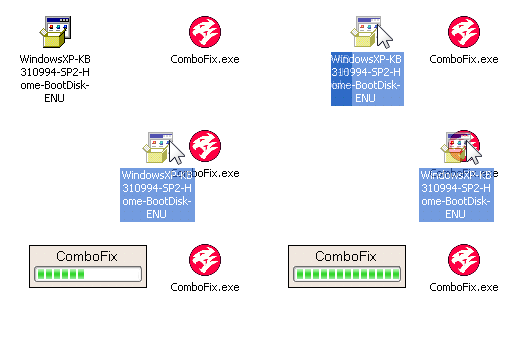
- ComboFix will now automatically install the Windows Recovery Console onto your computer, which will show up as a new option when booting up your computer. Do not select the Windows Recovery Console option when you start your computer unless requested to by a helper.
Manually restoring the Internet connection
If, by some chance, you no longer have access to your Internet connection after running ComboFix then the first thing to try is to reboot your computer. This step alone should fix the vast majority of issues with no Internet connection after running ComboFix. If you still do not have an Internet connection after rebooting then please perform the following steps:
- Click on the Start button.
- Click on the Settings menu option.
- Click on the Control Panel option.
- When the Control Panel opens, double-click on the Network Connections icon. If your Control Panel is set to Category View, then double-click on Network and Internet Connections and then click on Network Connections at the bottom.
- You will now see a list of available network connections. Locate the connection for your Wireless or Lan adapter and right-click on it.
- You will now see a menu similar to the image below. Simply click on the Repair menu option.
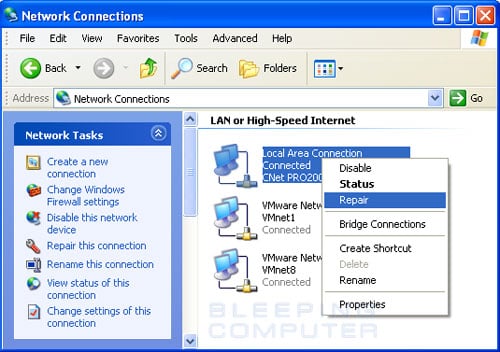
Repair Internet Connection - Let the repair process perform its tasks and when it has finished, your Internet connection should be working again.
Repair Internet connection via Tray Icon
If you still do not have an Internet connection after performing these two tasks, then you may want to ask for help in our
Linkleri görebilmek için Turkmmo Forumuna ÜYE olmanız gerekmektedir.
.
Linkleri görebilmek için Turkmmo Forumuna ÜYE olmanız gerekmektedir.
Şu an konuyu görüntüleyenler (Toplam : 0, Üye: 0, Misafir: 0)
Benzer konular
- Cevaplar
- 0
- Görüntüleme
- 99
- Cevaplar
- 3
- Görüntüleme
- 170